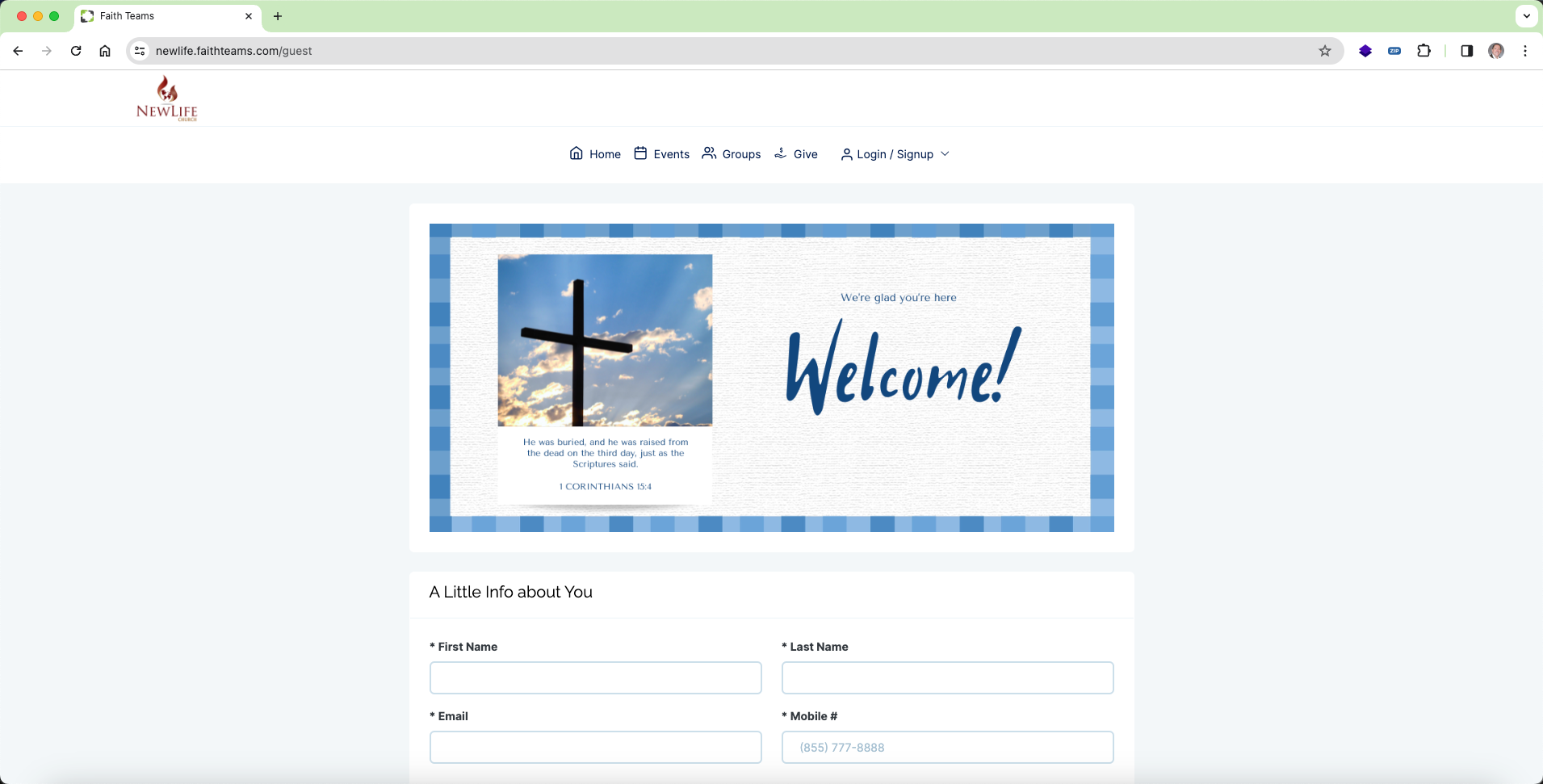
# Community – Guests
> Source: https://help.loafly.io/community-guests | Updated: 2026-08-04T15:43:09Z
The Guests section of Faith Teams Community allows you to present a “I was here” form to guests and even returning past members allowing them to fill out and submit the information they’ve put into the form.
The first step is to create a form.
**STEP 1 – Create a Form**
Simplest is best as this form may be presented on a mobile phone and while a guest has just entered your church. Click on “Tools” in Faith Teams and then click “Forms”.
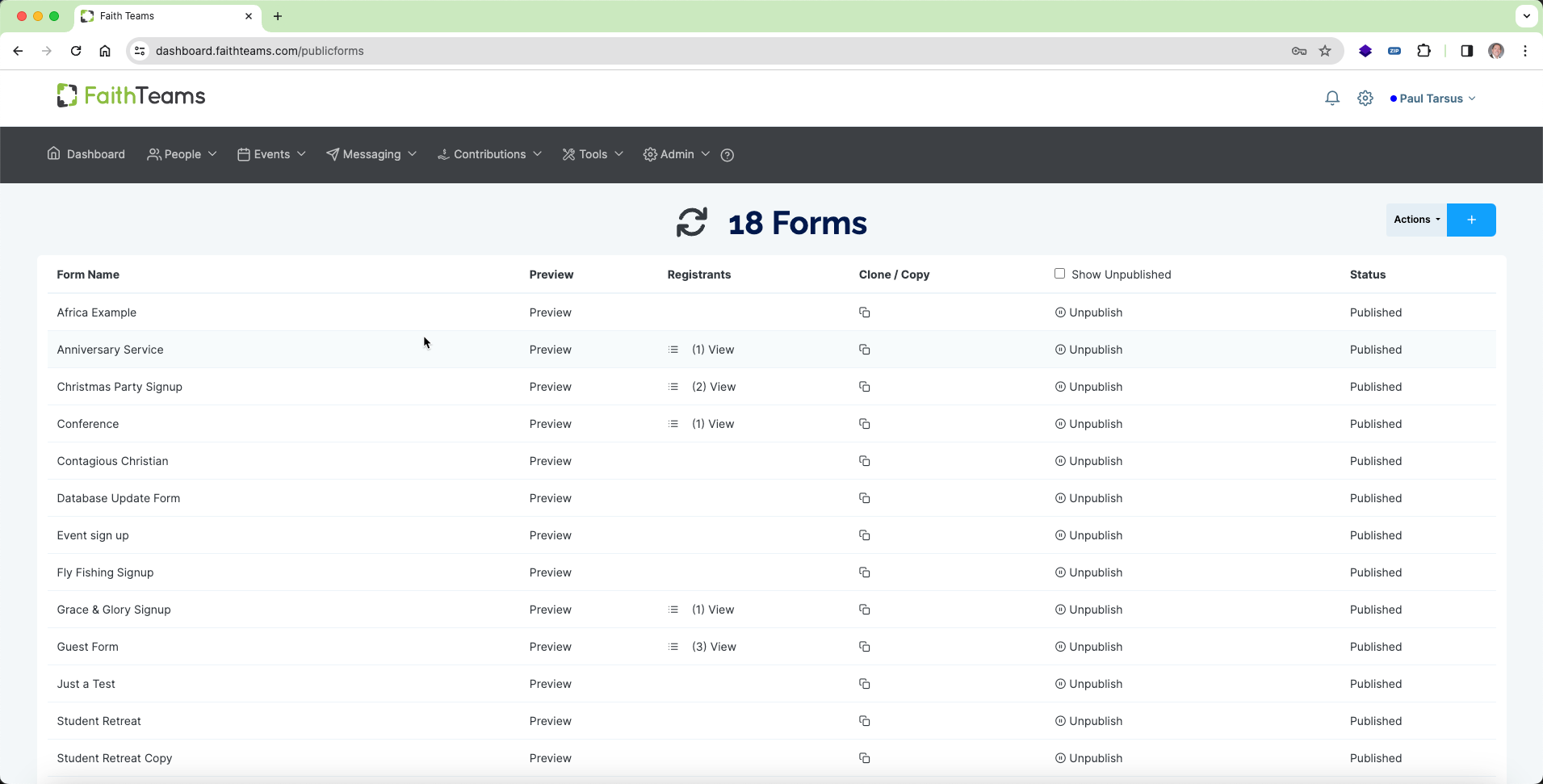 Then either create a new form or choose from an existing one and make changes as necessary for presentation in the Guests area in Community. For information on creating a new form, please refer to this article: .
**STEP 2 – Choose your welcome form for Guests in Community**
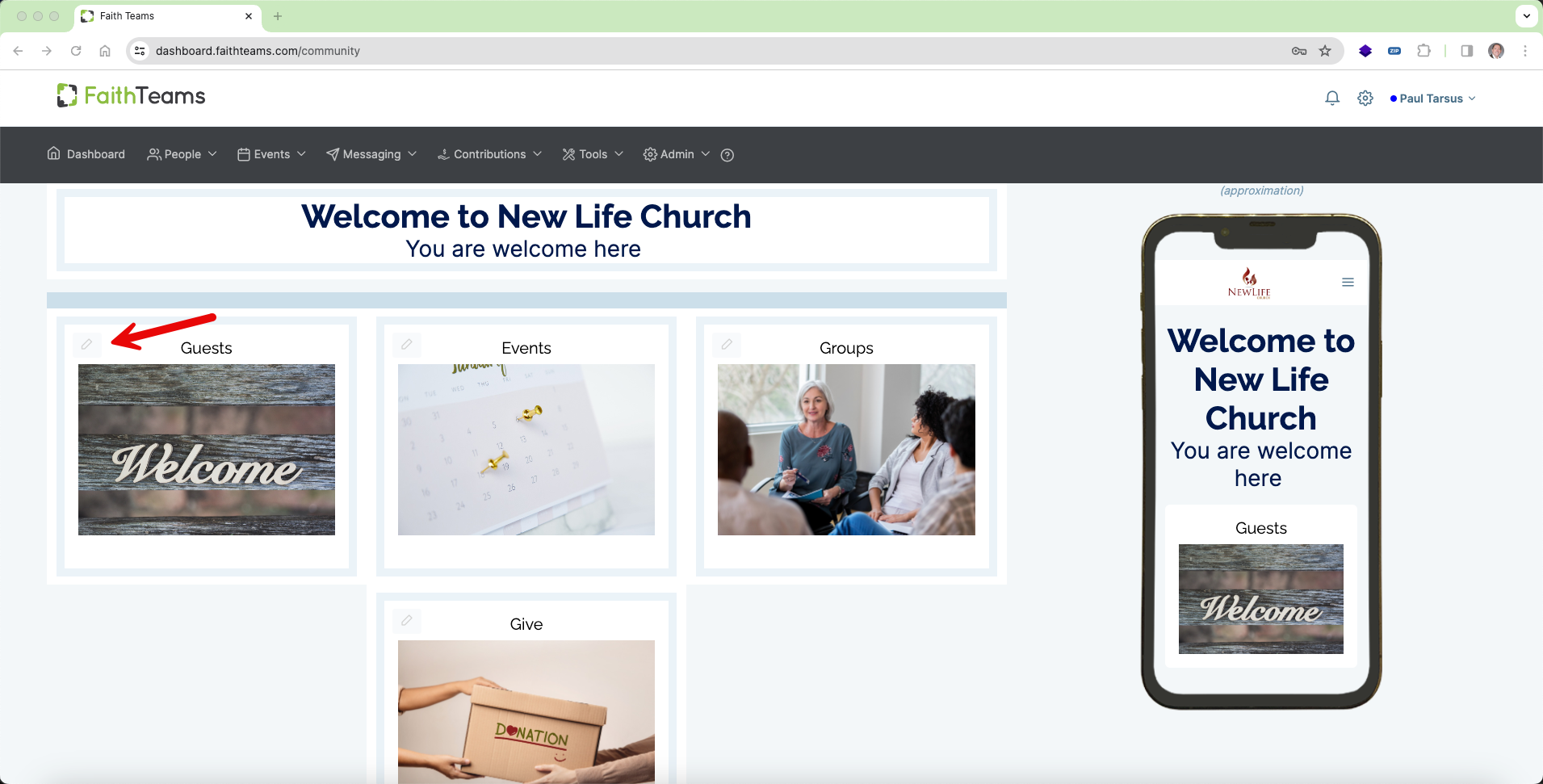
In Faith Teams, click on Admin and then click on Community. Then scroll down to the “Guests” and click on the pencil icon in the Guests block.
Then either create a new form or choose from an existing one and make changes as necessary for presentation in the Guests area in Community. For information on creating a new form, please refer to this article: .
**STEP 2 – Choose your welcome form for Guests in Community**
In Faith Teams, click on Admin and then click on Community. Then scroll down to the “Guests” and click on the pencil icon in the Guests block.
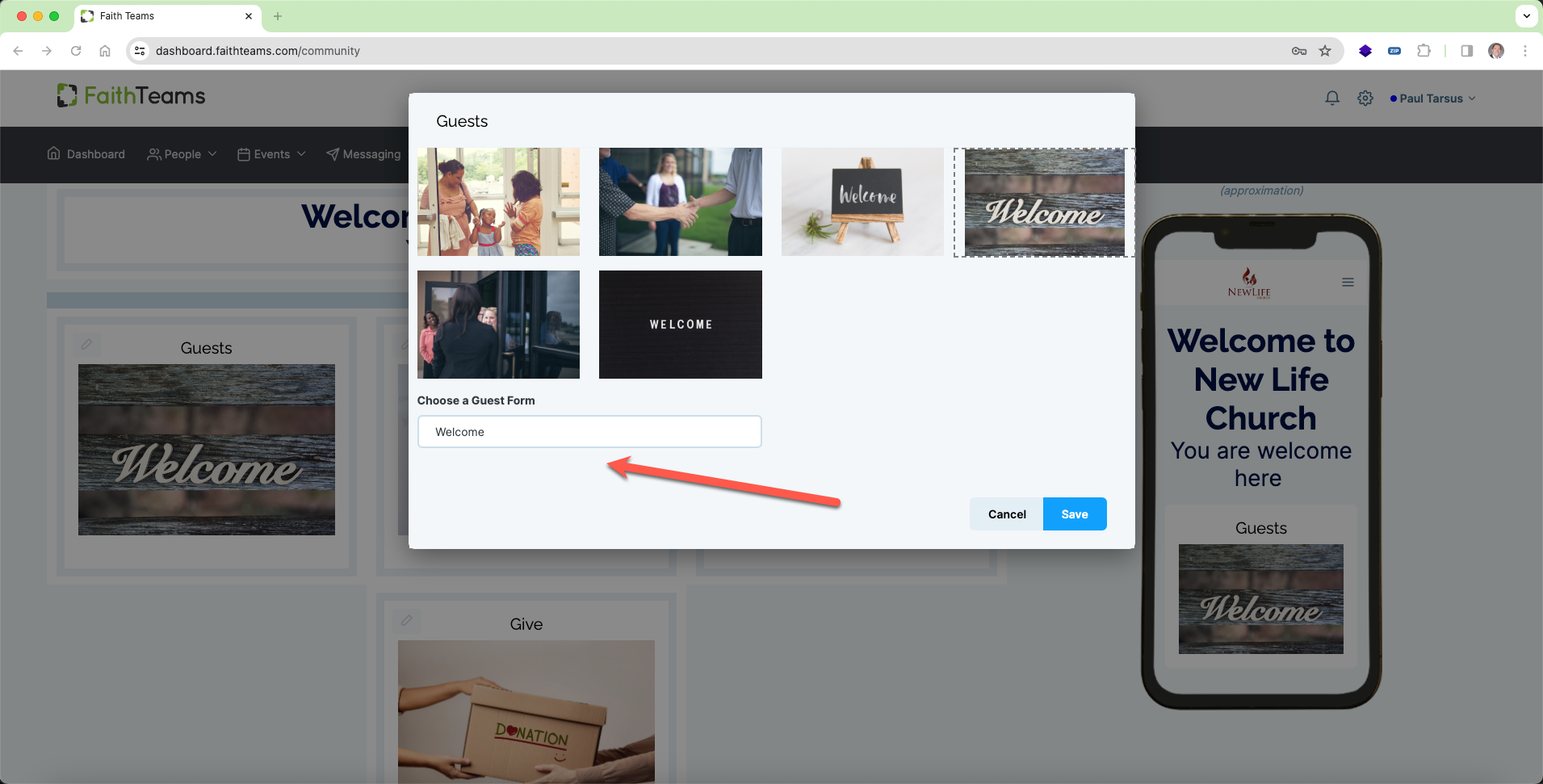
 Then touch in the field below “Choose a Guest Form” to choose your Guest form.
 Now when a user comes to your Community site and chooses Guests, your chosen form will show on the page: